
COMPUTER KEY BOARD QWERTY, GENERAL AWARENESS FOR LAYMAN
1. Who First Designed the Computer Keyboard?
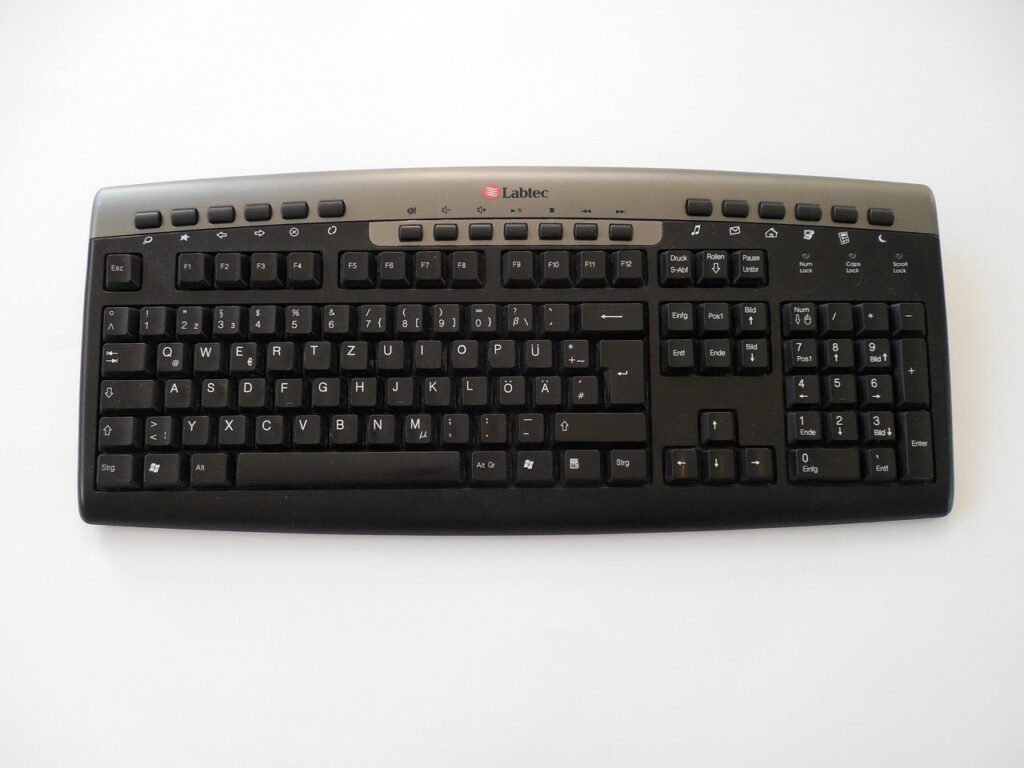
modern key board qwerty with mouse combos illustration
The modern computer keyboard is a direct descendant of the typewriter keyboard.
· Christopher Latham Sholes is credited with inventing the first commercially successful typewriter in the 1860s-70s and, crucially, its keyboard layout.
· The “QWERTY” layout (named for the first six letters on the top row) was designed. A popular myth claims it was to slow typists down to prevent jamming, but modern research suggests it was more about separating common letter pairs to reduce jamming and facilitate sales to telegraph operators.
keep learning more internal link
· The first computer keyboards in the mid-20th century simply adopted this familiar layout to make data entry easier for trained typists. The 104-key “Windows Keyboard” became the standard in the mid-1990s with the rise of Windows 95, adding the Windows keys (⊞ Win) and Menu key.
2. Explaining All 104 Keys for MS Word (QWERTY + Mouse Combos)
It’s impossible to detail every single function of every key combination in one response (there are thousands), but here is a comprehensive categorized guide to the keyboard’s sections and their primary functions in MS Word, including powerful mouse combinations.
Section 1: The Typing Keys (Alphanumeric + Shift)
· Letters (A-Z), Numbers (0-9), Symbols (! @ # $ % etc.): Their primary function.
· Shift Key: The most important modifier key.
· Alone: Capitalizes letters or accesses the top symbol on a key (e.g., Shift+4 = $).
· In MS Word: Selects text (click at start, hold Shift, click at end). With Arrow Keys, extends text selection character-by-character or line-by-line.
· Spacebar: Inserts a space. Ctrl+Click on a word selects the whole word. Triple-Click in a paragraph selects the whole paragraph.
Section 2: The Modifier Keys (The Power Users’ Tools)
These keys don’t do anything alone but change the function of other keys.
· Ctrl (Control): The king of shortcuts.
· Ctrl+C/X/V: Copy, Cut, Paste.
· Ctrl+B/I/U: Bold, Italic, Underline.
· Ctrl+S/O/P/N: Save, Open, Print, New document.
· Ctrl+Z/Y: Undo, Redo.
· Ctrl+F/H: Find, Find and Replace.
· Ctrl+Mouse Scroll Wheel: Zooms in/out.
· Alt: Accesses the Ribbon commands and system menus.
· Pressing Alt shows small letters/numbers on the Ribbon (Key Tips). Press that letter to activate the tab or command.
· Alt+=: Inserts a formula (Equation).
· Alt+Shift+Arrow Up/Down: Moves the selected paragraph/line up or down in the document.
· Windows Key (⊞ Win): OS-level, but useful.
· ⊞ Win+D: Minimize all and show desktop.
· ⊞ Win+Arrow Keys: Snap windows to sides of the screen.
· Fn (Function): Usually on laptops, modifies the F1-F12 keys and other special keys (volume, brightness).
Section 3: The Function Row (F1-F12)
· F1: Universal Help.
· F2: Move text/image (Select text, press F2, click where you want it, press Enter).
· F4: Power Key! Repeats your last action. Also, Ctrl+F4 closes current window; Alt+F4 closes program.
· F5: Opens “Go To” dialog (page, section, line).
· F7: Spell and Grammar check.
· F12: “Save As” dialog.
Section 4: The Navigation & Editing Keys
· Arrow Keys: Move the cursor.
· Ctrl+Arrow Left/Right: Move one word at a time.
· Ctrl+Arrow Up/Down: Move one paragraph at a time.
· Home/End: Go to beginning/end of the current line.
· Ctrl+Home/End: Go to the very start/end of the document.
· Page Up (PgUp) / Page Down (PgDn): Scroll one screen up/down.
· Delete (Del): Deletes character to the right of the cursor.
· Ctrl+Del: Deletes word to the right.
· Backspace: Deletes character to the left of the cursor.
· Ctrl+Backspace: Deletes word to the left.
· Insert (Ins): Toggles between “Insert” mode (default) and “Overtype” mode (typing overwrites existing text). Rarely used now.
Section 5: The System Keys
· Print Screen (PrtScn): Captures entire screen to clipboard. Alt+PrtScn captures only the active window.
· Scroll Lock (ScrLk): Historically locked scrolling; now mostly obsolete except in some spreadsheets.
· Pause/Break: Rarely used; can pause some old programs.
Section 6: The Numeric Keypad
· Num Lock: Toggles between numbers (when ON) and navigation keys (Home, End, Arrows, etc., when OFF).
· / * – +: Math operators. Ctrl+NumPad +/=: Subscript; Ctrl+Shift+NumPad +/=: Superscript.
Section 7: The Dedicated Windows Keys
· Windows Keys (Left & Right): Opens Start Menu.
· ⊞ Win+L: Lock your PC instantly.
· ⊞ Win+E: Open File Explorer.
· Application/Menu Key (▤): Equivalent to right-clicking on the selected item. A hugely underused key!
—
Powerful Mouse & Keyboard Combinations in MS Word
1. Double-Click: Selects a word.
2. Triple-Click: Selects an entire paragraph.
3. Ctrl+Click: Selects an entire sentence (clicks anywhere in the sentence).
4. Alt + Drag Mouse: Selects a vertical column of text (block selection), useful for formatting lists.
5. Shift+Click: As mentioned, for precise selection.
6. Ctrl + Mouse Scroll Wheel: Zooms the document view in and out.
7. Drag & Drop with Right Mouse Button: Drag selected text, release the right button, and you get a menu (Move, Copy, Link).
Final Advice: You don’t need to memorize all 104 keys. Focus on the core modifiers (Ctrl, Alt, Shift) and the navigation keys (Home, End, Ctrl+Arrows). Learning even 20-30 key combinations will make you exponentially faster in MS Word. Start with the essential Ctrl+S, C, V, X, Z, B, I, U and build from there.

Nice
Nice
Super 👍
Accha laga Blog
Great 👍
Best
Nice blog
Best
Super se super 👍
Bahut sundar
Nice 👍
Good sir
Kipidap